

PhotoStudio 6
A powerful, feature-rich image editor that enhances, manages, and prints your digital photos

Step 1Open your images
From the File menu, click Open and navigate to the photos you'd like to import and edit. Click Open to display the image.

Step 2Edit images with various tools
Use the various tools in the Tools panel (docked to the left side of the window by default) to edit your images. Or, from the Enhance and Effects menus, choose the desired editing tools.

Step 3 Use the HDR feature
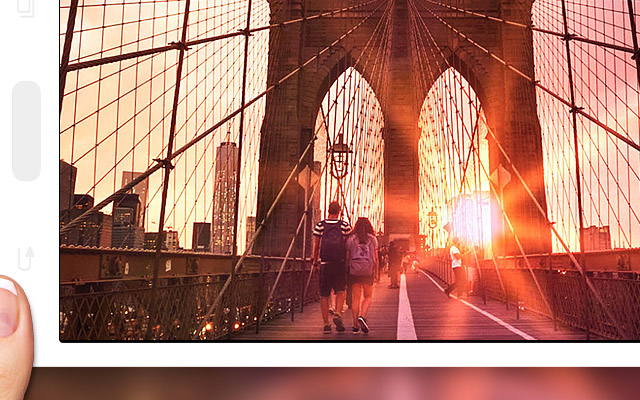
To use the High Dynamic Range (HDR) tool, click the HDR icon in the upper toolbar to display the HDR dialog box. Click the Add Files button and select three photos of the same image with different exposure levels, then click the OK button. Use the available tools to make further adjustments. When you are satisfied with the effect, click the Done button.

Step 4 Save and Print
Save your image with the new edits by clicking Save As and choosing the desired file type. Click the Print icon to display the Print dialog box, choose the settings, then click Print.


Free Download ArcSoft PhotoStudio 6 Windows Version | Mac Version
Get ArcSoft PhotoStudio 6 Now Windows Version| Mac Version
PhotoStudio 6
A powerful, feature-rich image editor that enhances, manages, and prints your digital photos