

1.Select the Information Center icon located in the top control panel. The Information Center dialog box displays.
2.Click the large Registration button in the lower left panel.
3.Enter the required information.
4.Click Submit.
Another option to register TotalMedia Theatre 5:1.Copy the Serial Number from the Splash/About screen.
2.Log into your ArcSoft account and select Software Registration.
3.Enter the required information.
4.Click Submit.
1.Start the Android Market application.
2.Scroll through the application icons to locate the TM Remote icon.
3.Tap the icon to start the downloading process. Once the application is downloaded, the TM Remote icon displays on your phone.
4.Tap the TM Remote icon. The install page displays, asking if you want to install this application. Click the Install button.
5.Tap Done to complete the installation. Tap Open to display TM Remote.
You can start using TM Remote immediately; no set up is needed.1.Open the QR code scanner application on your Android phone.
2.From TotalMedia Theatre 5 product page, browse to the TM Remote section.
3.Point your phone at the QR code to scan it. TM Remote will be launched on theAndroid Market on your phone.
4.Tap the icon to start the downloading process. Once the application is downloaded, the TM Remote icon displays on your phone.
5.Tap the TM Remote icon. The install page displays, asking if you want to install this application. Click the Install button.
6.Tap Done to complete the installation. Tap Open to display TM Remote.
You can start using TM Remote immediately; no set up is needed.1.check window7 firewall blocks all incoming connections or not
(1) Start—control panel – system and security –windows firewall – change notification settings
(2)Please don’t choose “Block all incoming connections, including those in the list of allowed programs” with Home and Public network.
(3)The right settings are shown in “win7_firewall_setting.jpg”. If your setting is right and android TM Remote can’t search you PC again. See step 2
2.TM Remote may not be added to you win7 firewall trust list. Don’t worry, we can add by ourselves:
(1) Start—control panel – system and security –windows firewall –- Advanced settings – Inbound Rules
(2) As shown in “Unadd_firewall_stustList.jpg”, Firewall stops the APP.
(3) Click properties that show in “Unadd_firewall_stustList.jpg”, then Allow the connection. Show as “add_firewall_trustList.jpg”.
(4) Click “ok”, android TM Remote can search PC. As shown in “work normal.jpg”.
For Pictures, please refer to:
ftp://FAQ_upload:pm!qSX21@hz-ftp.arcsoft.com.cn/mobile can't see my computer.zip1.Select Start | All Programs (or just Programs depending on your operating system.)
2.Select the Startup folder
3.Right click on the TM Server shortcut in the Startup folder
4.Select Delete
5. Restart your system
to switch between 2D and 3D playback. Click
to show the 3D Configuration settings shown below:Always play Blu-ray 3D™ movie in 3D mode
Check this option to automatically play Blu-ray 3D™ movies in 3D mode. Otherwise, ArcSoft TotalMedia® Theatre 5 will play Blu-ray 3D™ movies in 2D mode.
Always play movies and video files in 3D mode
Check this option to play all the supported movies types and video files in 3D mode.
Note: If neither of the above two options are checked, ArcSoft TotalMedia® Theatre 5 playback will be in 2D mode, and can’t be switched to 3D mode.
Source File Layout
Select the source file layout of your movie so ArcSoft TotalMedia® Theatre 5 can play it properly.
Auto Detect - When checked, ArcSoft TotalMedia® Theatre 5 will detect the source file layout and automatically play it in 3D mode. In a case of mis-detection, please try to manually set the source layout.
2D - Select this option when your source file is a 2D video/movie. ArcSoft TotalMedia® Theatre 5 will use Sim3D™ to convert the file to 3D in real-time.
Left/Right - Select this option when your source file already contains 3D images constructed by left and right images.
Top/Down - Select this option when your source file already contains 3D images constructed by top and bottom images.
Anaglyph - Select this option when your source file already contains 3D images constructed by red and cyan overlapped images.
Line Interleave - Select this option when your source file already contains 3D images alternating between left-eye and right-eye lines.
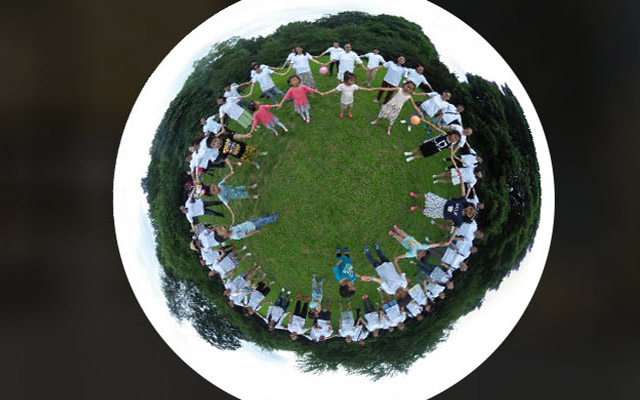
Four View - Select this option if source video contains 4 images. When you play the file in 2D, you should see a picture similar to the one here.
Depth Perception
Drag the Depth Perception slider to adjust the amount of depth in the video image.
Viewing EnvironmentSelect your Display Configuration
Select your 3D playback equipment so ArcSoft TotalMedia® Theatre 5 can play the movie properly.
NVIDIA 3D Vision Ready Display - Select NVIDIA® 3D Vision™ Ready display like a HDMI 1.4 3D TV, 120Hz LCD display 3D projector, or 100Hz and higher analog CRT.
AMD HD3D Technology - Select this if your display is a HDMI 1.4 3D TV or 120Hz LCD display.
Micro-polarized 3D LCD - Select this if your display is a Micro-polarized LCD TV that supports Line Interleave 3D output.
3D Ready DLP HDTVs - Select this if your display is a 3D-ready DLP TV that supports Checkerboard output.
Other Display - Select this if your display is not a 3D-ready display.
Swap Left/Right image when you experience eyestrain in 3D mode
some displays may have swapped images between the left eye and right eye which can cause eyestrain when it reverses. Check this option if you experience eyestrain.
1.Click the Media Manager button and the Online tab located in the left panel to reveal several YouTube options.
2.Click the desired option and choose the video you’d like to watch.
3.Single-click to play the video at thumbnail preview size. Double-click the video to play it full size.
1.Click the Settings icon to display the Settings dialog box.
2.Click the Playback tab.
3.From the YouTube File Profile dropdown list box, select the desired playback quality.
4.Click the Apply and OK button.
1.Click the small white arrow
next to the SimHD button to display the SimHD Settings dialog box.
2.Deselect the Automatic checkbox and make sure the Enable checkbox is checked.
3.Select the desired checkbox for De-Noise, Dynamic Lighting, Sharpness, and Smoothness.
1.To display the Smart Menu, click the
icon, located on the bottom control panel. (Make sure a DVD or video file is playing in order to enable the Smart Menu.) For information on each command on the Smart Menu, please refer to the online Help or manual.
2.To display the Information tab, click the Settings
icon, located in the top right corner of the main screen, to display the Settings dialog box. Click the Information tab to display the video and audio attributes.
3.To display the Information popup, open the right-click menu and select
Information
1.To display the Smart Menu, click the
icon, located on the bottom control panel. (Make sure a DVD or video file is playing in order to enable the Smart Menu.)
2.Click Add Bookmark to add a bookmark at the current point. All bookmark thumbnails for a movie are displayed in the Bookmark tab.
3.Click the desired thumbnail to play the movie.
1.From the Settings dialog box, select the File Association tab.
2.Select the desired video file format or check the All checkbox.
3.Click Apply and then OK.
1.Select Capture or press P from the right-click menu to capture an image from the current video screen. The captured image is saved in the storage folder.
2.To set the folder location for saved images, click the Settings icon to display the Settings dialog box.
3.From the General tab, click the Change button to browse to the desired folder to save captured images.
4.Click Apply and OK.
1.From the Right-Click Menu, click Subtitles and the Add Subtitle submenu.
2.Browse to the desired file. Click Open.
1.Click the AV Center button to display five tabs: Audio Output, Audio Effects, Equalizer, Display, and Video Effects.
2.Click the Audio Output tab to choose the audio output mode for the selected sound card.
3.Click the Audio Effects tab to increase the volume for your video when the system and program volume are already set to maximum. You can also choose an audio effect mode.
4.Click the Equalizer tab to boost low, mid-range, and high audio frequencies on the 10-band equalizer. Click and drag each band to adjust the level.
5.Click the Display tab to adjust video playback for a high-performance video card. You can also choose the Deinterlacing option if you are watching your movie on an LCD screen or an HDTV.
6.Click the Video Effects tab to change the brightness, contrast, hue, and saturation of your movie.
1.Display the Settings dialog box by clicking the Settings icon
, located in the Top Control Panel.
2.Click the General option.
3.From the UI Language drop-down list box, select the preferred language.
4.Click OK.
1.Display the Settings dialog box by clicking the Settings icon
, located in the Top Control Panel.
2.Click the General option.
3.Click the Change button next to the Captured Images and Bookmarks Storage drop-down list box and select a new folder.
4.Click OK on the Browse for Folder dialog box. Click OK on the Settings dialog box.
1.Display the Settings dialog box by clicking the Settings icon
, located in the Top Control Panel.
2.Click the Playback option.
3.Check the Auto Full Screen checkbox to automatically switch to full screen mode when you start playing movies.
4.Click Apply and OK.
1.Display the Settings dialog box by clicking the Settings icon
, located in the Top Control Panel.
2.Click the Playback option.
3.From the Auto-Resume drop-down list box, select the desired option.
4.Click Apply and OK.
1.Display the Settings dialog box by clicking the Settings icon
, located in the Top Control Panel.
2.Click the BD-Java option.
3.Check the Allow Access to Internet checkbox.
4.From the Certification drop-down list box, select the desired option.
5.Click Apply and OK.
1.Display the Settings dialog box by clicking the Settings icon
, located in the Top Control Panel.
2.Click the BD-Java option.
3.Click the Change button next to the BD-Live Download Storage box and select a new folder.
4.Click OK on the Browse for Folder dialog box.
5.Click Apply and OK on the Settings dialog box.
1.Display the Settings dialog box by clicking the Settings icon
, located in the Top Control Panel.
2.Click the Parental Control option.
3.Select the movie level from the Level Setting drop-down list box.
4.Click the Set Password button to enter a password. Click OK.
5.Click Apply and OK on the Settings dialog box.
1.Display the Settings dialog box by clicking the Settings icon
, located in the Top Control Panel.
2.Click the Power Manager option. The Power Status displays the power supply (AC Line or Battery) that your computer is currently using.
1.Click the Information Center icon
, located in the top left side of the main screen, to display the Information Center dialog box.
2.Click the Registration button. Follow the online instructions.
1.While the movie is playing and the subtitles are displayed, mouse-over the subtitle. A box surrounds the subtitle. Drag-n-drop the subtitle box to the desired location.
2.To resize the subtitle, use the scroll wheel on the mouse to increase or decrease the size of the letters.
3.Click the arrow icon to reset the text to normal.
1. Installing the latest driver for your graphic card and sound card
2. Uninstall and reinstall the driver for your graphic card and sound card
3.Change another drive
4.uninstall and reinstall the TMT5
Step1: Control Panel -> Programs -> uninstall TMT5, restart PC
Step2. delete these files/folders:
XP OS:
C:\Documents and Settings\current user \local settings \arcsoft\ArcSoft TotalMedia Theatre 3
C:\Documents and Settings\current user\Application Data\ArcSoft\ArcSoft TotalMedia Theatre 3
C:\Windows\System32\drivers\archlp.sys
C:\Program Files\ArcSoft
Vista/W7 32-bit OS:
C:\Users\current user\AppData\Roaming\ArcSoft
C:\Users\current user\AppData\Local\ArcSoft
C:\Users\All Users\ArcSoft
C:\Windows\System32\drivers\archlp.sys
C:\Program Files\ArcSoft
C:\ProgramData\ArcSoft\licensedata
Vista/W7 64-bit OS:
C:\Users\current user\AppData\Roaming\ArcSoft
C:\Users\current user\AppData\Local\ArcSoft
C:\Users\All Users\ArcSoft
C:\Windows\SysWoW64\drivers\archlp.sys
C:\Program Files (X86)\ArcSoft
C:\ProgramData\ArcSoft\licensedata
Step3: Clean up the registration files:
1).Go to Start menu and click “Run”, type "regedit" and press Enter.
2).Delete [HKEY_LOCAL_MACHINE\SOFTWARE\ArcSoft] and [HKEY_CURRENT_USER\Software\ArcSoft].
Step 4: Reinstall TMT after rebooting the computer.
1. What is your sound card type: On-board or USB external or independent?
2. Which model (Brand) Sound card it is? (Chipset or model etc) What is the driver of Sound card?
3. How do you connect between different devices? Is the connection is through AVR?
4. Which model (Brand) is your AV Receiver?
5. Did you have changed the setting of TMT setup -audio Tab setting, Sound card setting and AVR setting? If yes, Please tell us the detail information for these setting:TMT audio Tab setting, Sound card setting and AVR setting.
6. What is the OS? (Vista64-sp1 or Vista32-sp1?)
7. Does every disc have the same result? What are the video and audio info of the disc? Can you please offer the disc names?
Other issue please provide the following information:1.CPU (For example, Intel Core2 Duo CPU E8300 @ 2.83 GHz)
2.RAM
3.Operating System ( Such as Vista 32bit SP1, Vista 64bit SP2 )
4.Graphics card and driver
5.Sound card and driver
6.Motherboard
7.Monitor model and name
8.If you use TV as your monitor, please tell us the connector. (HDMI? VGA? DVI?)
9.Screen resolution and refresh rate (Such as 1920*1080, 24hz/60hz)
10.Blu-ray disc driver
11.The Blu-ray Disc titles you have tested.(Such as BD: 'Transformers' Region A )Could you please provide me a link to show its information?
12.Anti-Virus software model and name

| Plays/Pauses Blu-ray Disc, DVD, VCD, multimedia files, etc. | |
| Goes back to the previous chapter or track. | |
| Skips forward to the next chapter or track. | |
| Rewind | |
| Forward | |
| Stops the current file or movie. | |
![]() |
Slide to control the volume. |
| Feature | BD Profile 1.0 | BD Profile 1.1(Bonus View) | BD Profile 2.0(BD-Live) |
| Local Storage | No | 256 MB | 1GB |
| Secondary Video/Audio Decoder | No | Essential | Essential |
| Virtual Package | No | Essential | Essential |
| Internet Connection Capability | No | No | Essential |
1.Click on Setup(Control + S) in the main screen.
2.Click on the Audio Tab
3.Under the Audio output dropdown highlight S/PDIF.
icon will light up to notify the user to update.1.Click on the Setup Icon (Control key + S).
2.Select the Video Tab
3.Click on the Advanced Button
4.Under the Time Stretch bar use the '-' or '+' to adjust the playback time/speed
When you slect to have hardware acceleration turned on the frames will we displayed through the hardware, therefor software post productions will be disabled.